
How to compress a photo to 20 KB
Last updated: 26 September 2026
Many online forms ask for a photo or signature under 20 KB. A photo from your phone camera is usually several megabytes, so it has to become smaller in pixels as well as more compressed. Here is how to do that with PixPress on your Android phone. Compression happens on your device and works offline.
For a photo: use the ID Photo preset
- Open PixPress and tap Add Photos, then pick your photo.
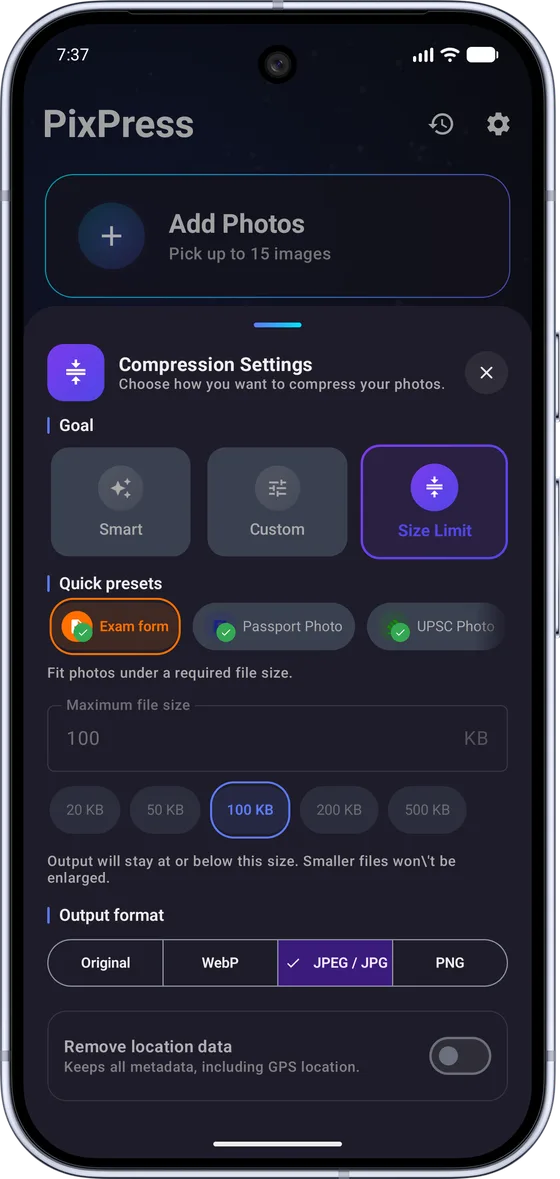
- In Compression Settings, choose Size Limit.
- Open Quick presets and choose ID Photo. It resizes the photo to 600 pixels on its longest side and keeps the file at or below 15 KB, which fits under a 20 KB limit.
- Tap Compress, check the result with the Compare slider, then save or share it.
For a signature: use the Exam Signature preset
Follow the same steps and choose Exam Signature instead. It resizes the image to 140 pixels on its longest side and keeps it at or below 15 KB. Sign on plain white paper and crop close to the signature before you start.
Or type 20 KB yourself
In Size Limit, tap the 20 KB quick size, or type 20 in Maximum file size. PixPress keeps the image at or below 20 KB if it can. This works well for images that are already small, such as a cropped photo or a scanned signature. A full-size camera photo is often too large to reach 20 KB this way. If a photo is still over the limit, the result screen tells you, and you can use one of the presets above instead.
Before you upload
- Check the minimum too. Some forms also set a minimum size, for example 10 KB. A result that is too small can be rejected as well.
- Check the pixel size. If the form asks for exact dimensions, such as 200 × 230 pixels, crop the photo to that shape first. PixPress resizes by the longest side and does not crop.
- Use JPEG. Most forms accept JPEG, and the presets above save in JPEG.
PixPress is an independent image compression app and is not affiliated with or endorsed by any exam board, recruitment board or government agency. Requirements change, so always check the latest rules on the official portal.
Common questions
Is PixPress free for this?
Yes. Size Limit and all presets are free for up to 25 photos at a time. PixPress is supported by ads, with an optional Pro subscription for larger batches and an ad-free experience.
Are my photos uploaded?
No. PixPress compresses photos on your phone and does not upload your selected photos to PixPress servers. Compression works offline.
Will my photo look worse at 20 KB?
Some quality loss is normal at a size this small, especially on detailed photos. Use the Compare slider to check the result before you save or upload it.
Can PixPress make a photo exactly 200 × 230 pixels?
No. PixPress resizes by the longest side and does not crop. If a form asks for exact pixel dimensions, crop the photo to the right shape first, then compress it.